

Node Overview
Nodes are the building blocks of AI Video Studio. Each node holds one piece of content — a block of text, an image, a video, or an audio clip — and can generate that content using an AI model, or accept content you upload or type yourself.
You build a project by placing nodes on the canvas and connecting them. The output of one node flows into the next, so a text node's content can become the prompt for an image node, which in turn feeds a video node.
Anatomy of a node
Every node has the same three components, regardless of type.
Display area
The main body of the node, where content is shown. When a node is empty, the display area shows available presets (quick-start options). Once content exists — whether generated or uploaded — the display area shows that content along with a context toolbar.
Generation panel
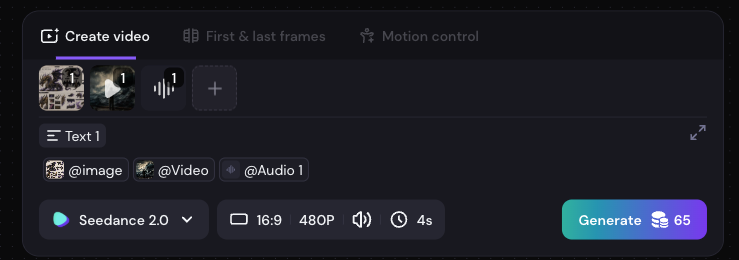
The input area below the display area, where you write prompts and configure the AI model. It contains:
- A reference strip (shown when upstream image or video nodes are connected)
- A text input field for your prompt
- A model selector and parameter controls
- A Generate button that shows the credit cost before you confirm
Connection points
Small handles on the left and right edges of the node.
- Left connection point — receives input from upstream nodes
- Right connection point — passes this node's content to downstream nodes
Node states
| State | What you see |
|---|---|
| Empty | Display area shows presets or an Upload button; Generate button is active if prompt is filled |
| Generating | Display area shows a progress indicator; Generate button is disabled |
| Ready | Display area shows the content; toolbar appears with download and other actions |
| Failed | Display area shows a failure message; credits are refunded; you can retry |
Connecting nodes
Drag from a node's right connection point to another node's left connection point to create a directed connection. Connections always flow left → right. Circular connections (A → B → C → A) are not allowed.
What can connect to what
| Upstream node | Can connect to |
|---|---|
| Text Node | Text Node, Image Node, Video Node, Audio Node |
| Image Node | Text Node, Image Node, Video Node |
| Video Node | Text Node, Video Node |
| Audio Node | Video Node only |
Note: Video Node cannot connect downstream to an Image Node. Audio Node cannot connect to another Audio Node or an Image Node.
You can also create a new node straight from a connection: drag out from a node's right connection point and release on empty canvas. The node picker only offers the types valid for that upstream node (per the table above) — others are greyed out.
Upstream generation blocking
If any upstream node in a chain is currently generating, its downstream nodes cannot start a new generation. The Generate button on blocked nodes is greyed out with a tooltip: "Upstream task in progress."
Once the upstream generation completes (successfully or with failure), the downstream Generate button becomes active again.
Tip: A node that has failed to generate does not block downstream nodes — downstream nodes can still generate, but the failed node's content will not be passed as input.
How upstream content appears in the generation panel
When you connect upstream nodes, their content appears automatically in the downstream node's generation panel.
Text from a Text Node appears as an inline icon block in the prompt input field. The text is spliced into your prompt in the order the connections were made. You can delete these icon blocks to disconnect the upstream text.
Images from Image Nodes appear in the reference strip at the top of the generation panel, each labeled with a sequence number (Image 1, Image 2, etc.). In your prompt, you can use @Image 1, @Image 2, and so on to refer to specific reference images.
Videos from Video Nodes appear in the reference strip alongside images, labeled as Video 1, Video 2, etc. (the numbering is shared with images in connection order). You can use @Video 1 in your prompt to refer to a specific reference video.
Audio from Audio Nodes appears in the Video Node's reference strip as an audio placeholder thumbnail. You can use @Sound in the Video Node prompt to reference the connected audio. Connecting an Audio Node automatically switches the Video Node to Omni-Reference mode.
Tip: Sequence numbers reflect the order connections were made, not the visual position of nodes on the canvas. The first upstream node you connect is always number 1.
Deleting nodes
To delete a node, select it and press Backspace or Delete. You can undo a deletion with Cmd/Ctrl + Z.
Note: You cannot delete content from inside a node — only the node itself can be deleted. Generating new content with the model replaces whatever is currently in the display area.
Updated 4 months ago