

Canvas Interface
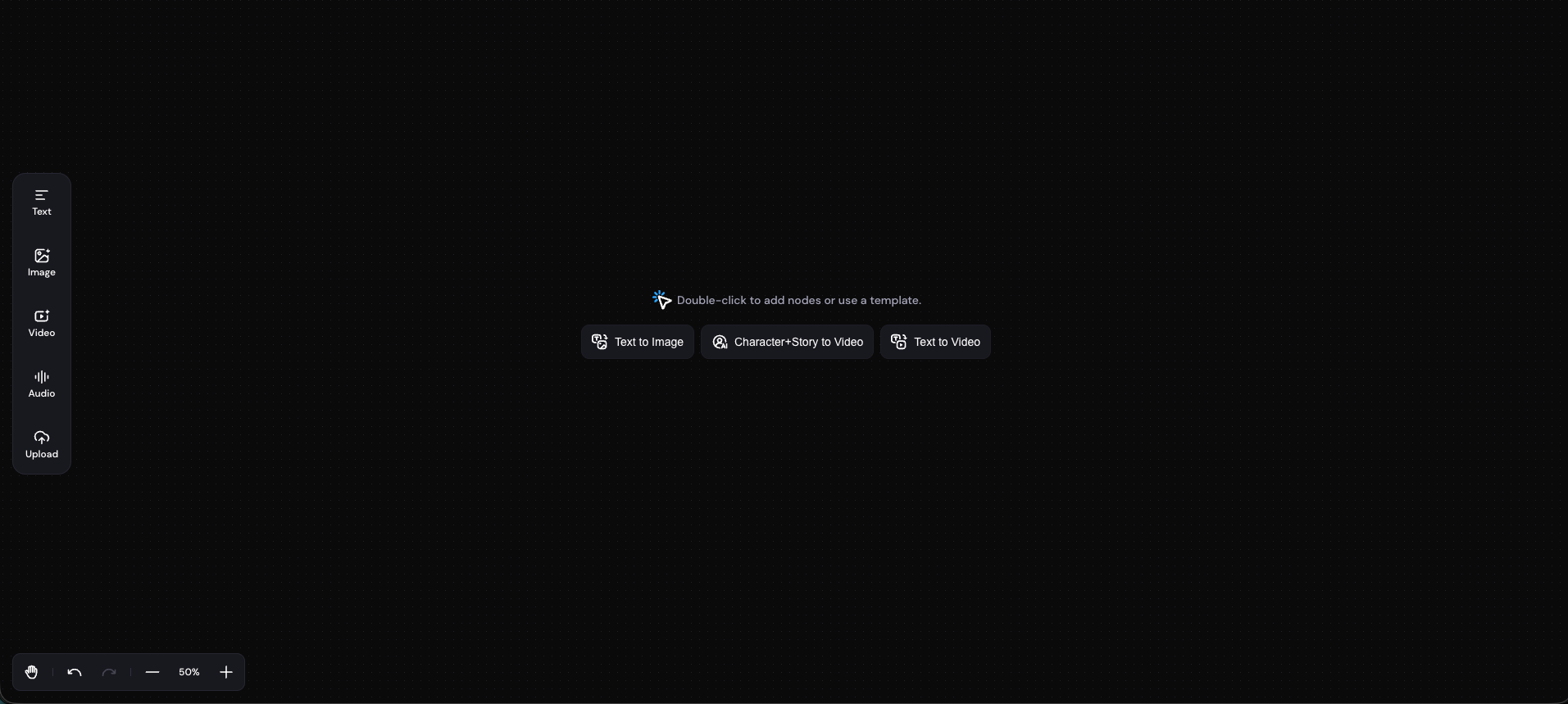
Canvas is an infinite, zoomable surface where you place nodes, connect them, and build your project.
Opening a project
You can create or open an Canvas project from your Zeemo dashboard in two ways:
- Click Canvas on the workbench to create a new project
- Click New Project → Create Blank Canvas to start from a project creation flow
Each project is its own canvas. Nodes and connections are saved automatically as you work.
Canvas layout
When you open a project, the canvas fills the screen. The main elements are:
The canvas surface — the infinite work area where nodes live. Pan and zoom freely to move around.
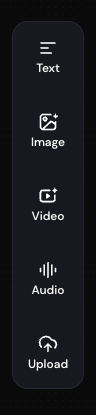
Node toolbar — a fixed toolbar on the canvas (typically at the bottom or side) with buttons to add a Text Node, Image Node, Video Node, or Audio Node. Clicking any button places the new node at the center of the current viewport.
Node selection — click any node to select it. A selected node shows all of its components and highlights its connections. Only one node can be selected at a time; click empty canvas to deselect.
Adding nodes
There are three ways to add a node:
-
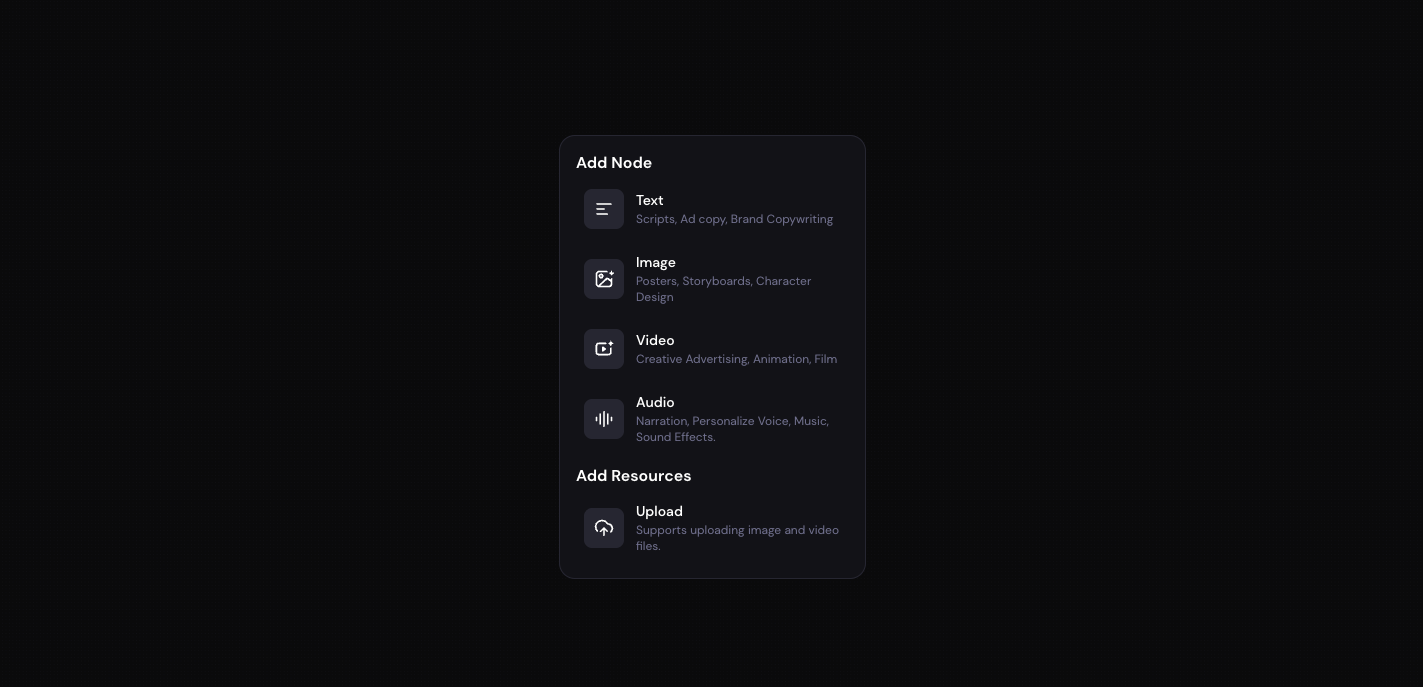
Double-click any empty area to open the node picker — the node appears where you clicked.
-
Click a button in the node toolbar — the node appears at the center of your view.
-
Drag from a node's right connection point and release on empty canvas — a new downstream node is created, already connected.
Connecting nodes
To connect two nodes, drag from the right connection point of the upstream node to the left connection point of the downstream node, then release. Click a connection line to select it, then delete it to disconnect.
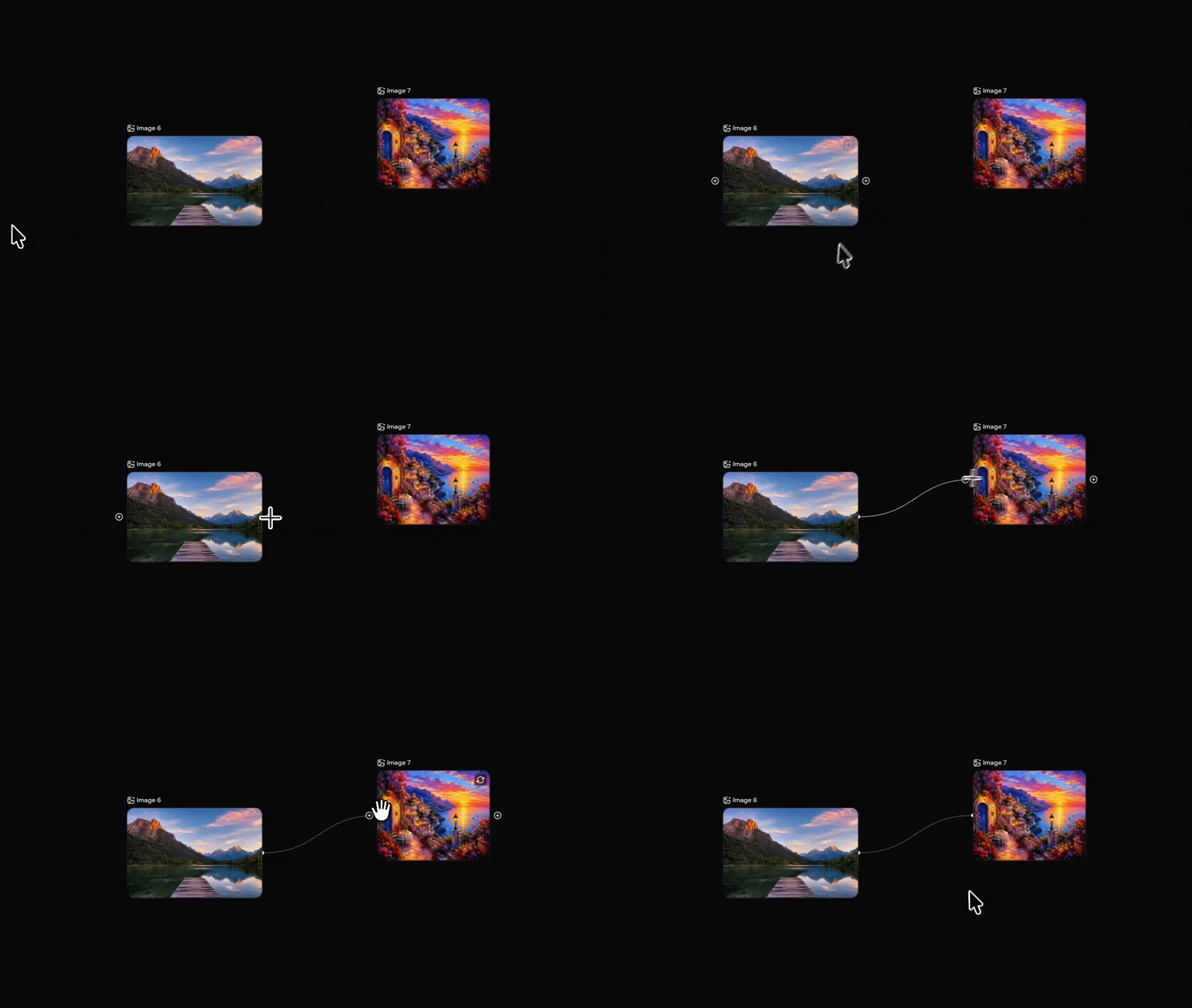
Tip: The snap zone is generous — you don't need to land precisely on the connection point.
For the rules on which node types can connect to which, see Node Overview.
Deleting nodes
- Click the node to select it.
- Press
BackspaceorDelete.
Tip: Deleted a node by mistake? Press
Cmd/Ctrl + Zto undo.
Canvas navigation
Pan by holding Space and dragging (or a two-finger trackpad swipe). Zoom with Cmd/Ctrl + scroll or a pinch, from 10% to 200%. Press H to toggle the pan tool.
For the full list of keyboard shortcuts, see Shortcuts & Navigation.
Updated about 1 month ago